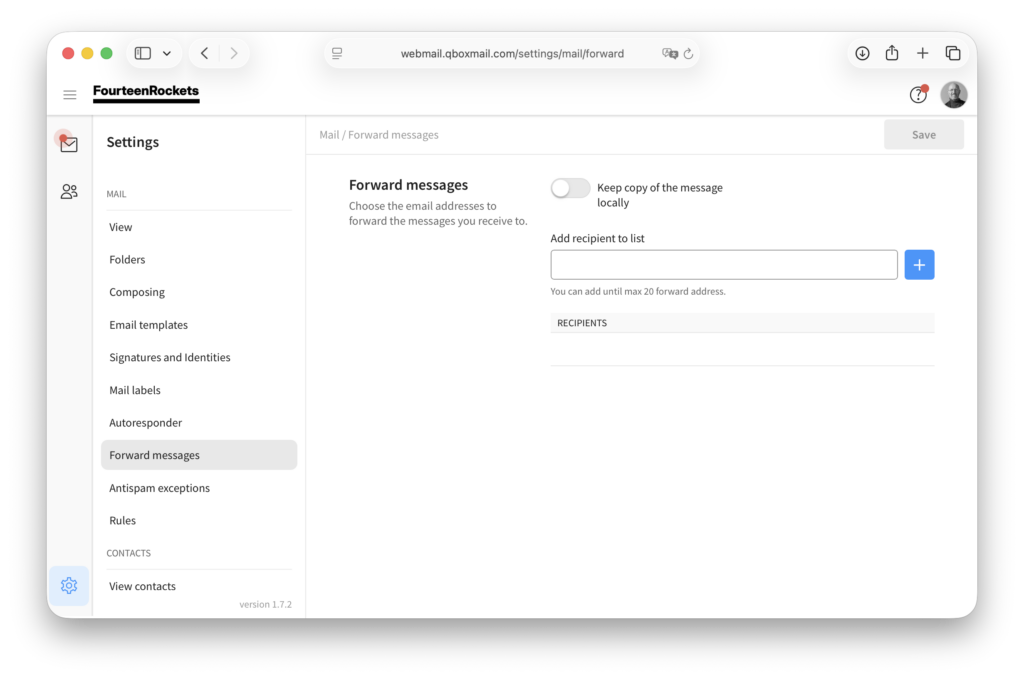
In ‘Forward messages’, you forward every email that arrives in your mailbox to one or more other addresses, for example to a colleague while you are away. You can forward to up to 20 addresses.
- Click the settings icon in the bottom left corner of webmail.
- Select ‘Forward messages’ under ‘Mail’.
- Type the email address you want to forward to under ‘Add recipient to list’.
- Click ‘+’.
- Turn on ‘Keep copy of the message locally’.
- Click ‘Save’ in the top right corner.
With ‘Keep copy of the message locally’ turned on, every forwarded email also stays in your own inbox. Without this setting, forwarded emails no longer arrive in your mailbox at all.
To stop forwarding, click the bin icon next to the address under ‘Recipients’ and click ‘Save’.
Forwarding sends your email on to another mailbox. If you want to receive email for a second address in your own mailbox instead, that second address is an alias. See Aliases in Webmail.