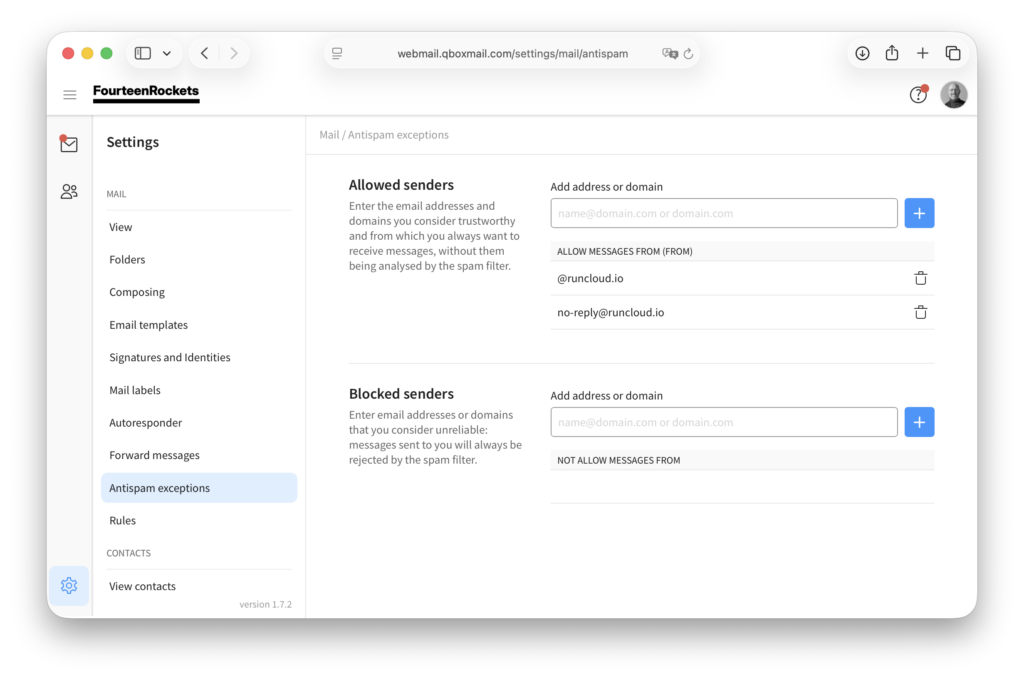
When email from someone you know keeps arriving in your spam folder, add the sender to ‘Allowed senders’ in ‘Antispam exceptions’. Email from an allowed sender is no longer checked by the spam filter. Email from a sender under ‘Blocked senders’ is always rejected by the spam filter.
- Click the settings icon in the bottom left corner of webmail.
- Select ‘Antispam exceptions’ under ‘Mail’.
- Under ‘Allowed senders’, type the email address or the domain of the sender in the ‘Add address or domain’ field, for example colleague@theirdomain.org or theirdomain.org.
- Click ‘+’.
The sender now appears in the list below the field. To block a sender, add the email address or domain under ‘Blocked senders’ in the same way. To remove an address from either list, click the bin icon next to the address.
Never add your own domain to either list. Spam often carries a forged sender address on the recipient’s own domain, so allowing your own domain lets that spam through.