If you want to, you can change the password of your mailbox yourself, under ‘Security’ in webmail. Under ‘Security’ you can also turn on two-factor authentication for webmail, which we recommend.
Change your password
Before you change the password, keep in mind that every email program that uses your mailbox, on your computer, phone and tablet, stops receiving and sending email until you type the new password in that program. Change the password only when you have time to update all of your devices.
- Click the settings icon in the bottom left corner of webmail.
- Select ‘Security’ under ‘General’.
- Click ‘Change password’.
- Type your current password.
- Type the new password.
- Type the new password again to confirm the new password.
- Click ‘Save’.
‘Generate random password’ creates a strong password for you. Store the generated password in your password manager before you click ‘Save’.
Then type the new password in the email program on each of your computers, phones and tablets. The email setup articles show where the password is in each program.
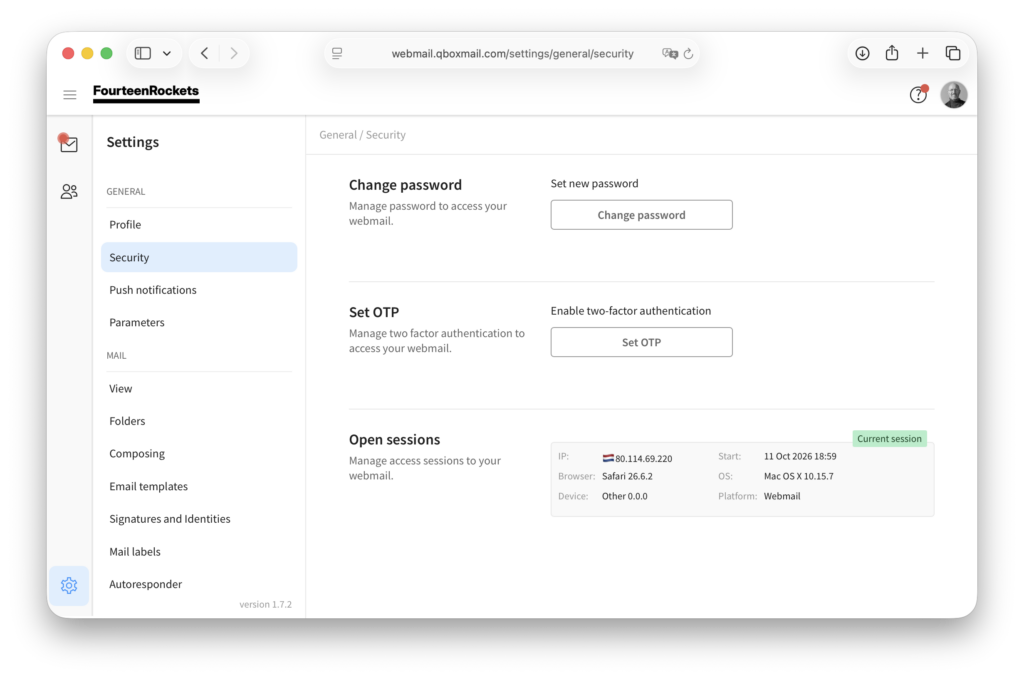
Turn on two-factor authentication
With two-factor authentication, webmail asks for a code from an authenticator app on your phone, such as Google Authenticator, after your password. Someone who knows your password still cannot log in to webmail without your phone. Webmail calls this code an OTP, a one-time password.
Two-factor authentication applies to logging in to webmail only. Mail, Outlook, Thunderbird and other email programs keep using your password alone.
- Click the settings icon in the bottom left corner of webmail.
- Select ‘Security’ under ‘General’.
- Click ‘Set OTP’.
- Scan the QR code with your authenticator app.
- Type or paste the code that the authenticator app shows.
Webmail confirms the code as soon as the code is complete, so you do not need to click ‘Confirm’. From then on, webmail asks for a code from the authenticator app each time you log in. To turn two-factor authentication off again, click ‘Disable OTP’ under ‘Security’ and type the current code from the authenticator app.
The code for webmail is separate from the code for your WordPress website, even when both are in the same authenticator app. Webmail appears as an account of its own in the app, so check that you type the code shown under webmail. For the WordPress code, see How to activate Google Authenticator.
If you have forgotten your password, send us an email at hello@fourteenrockets.com and we will set a new password for your mailbox.