Skip to content
Cart () items in cart

Should a link open in a new tab? How to set it in WordPress

When to open a link in a new tab, when to keep it in the same one, and the exact steps to set it in the WordPress block editor.

Every time you add a link in WordPress, you decide one thing about it: whether it opens in the same tab or a new one. For most links the answer is straightforward, and the setting takes a few seconds. This explains when to use each, and where to find the option in the editor.

Your own pages, or another website

There are two kinds of links, and they behave differently. A link to one of your own pages is an internal link. A link to another website is an external link. The kind of link decides the sensible setting.

Keep internal links in the same tab. People expect to stay on your site as they move through it, and a new tab for every internal click soon leaves them with a row of tabs they did not ask for. In practice this is the setting you will use most, because most links on a site point to its own pages.

For external links you have a choice. If the link opens in a new tab, your own page stays open behind it, and the reader comes back to you when they close that tab. If it opens in the same tab, the reader leaves your page and uses the back button to return. Neither is wrong. Opening external links in a new tab is a common default, and it is the one most editors reach for.

How to open a link in a new tab

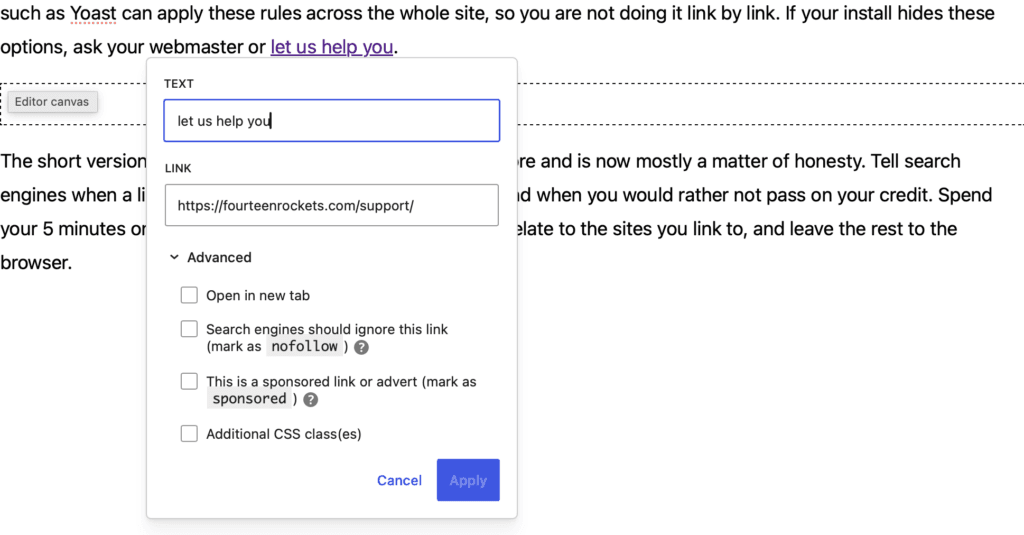
The option is in the link panel, under Advanced.

  1. Select the text you want to turn into a link.
  2. Press Command + K on a Mac, or Control + K on Windows. You can also click the link button in the small toolbar above the text.
  3. Type or paste the web address in the Link field.
  4. Click Advanced to open that section.
  5. Tick Open in new tab.
  6. Click Apply.

The link now opens in a new tab. WordPress also adds a small safety setting for you (rel=”noopener”), so the new tab cannot affect your page.

The importance of using the correct link rel attribute in WordPress FourteenRockets

Keeping a link in the same tab

The same tab is the default, so there is nothing to switch on. Add the link as usual and leave Open in new tab unticked. You do not even need to open the Advanced section. This is the right setting for every link that points to one of your own pages.

If a link opens in a new tab, say so

A tab that opens on its own can be confusing, especially for someone using a screen reader, or anyone who finds sudden changes hard to follow. The clear thing to do is signal it, so the reader is not caught out. A short note in the link text, such as ‘opens in a new tab’, or a small external-link icon beside the link, is enough. Some themes add that icon for you across the whole site.

The rule is short: keep links to your own pages in the same tab, and open links to other sites in a new tab if you would rather keep your page open behind them. Everything else in that Advanced panel is about search engines, not about how the link opens. If your WordPress install hides these options, or you would like the same rule applied across the whole site, ask your webmaster, or our WordPress support can set it up for you.

Linette Raven is a photographer and has worked with portrait photography since 1986 and sustainable tulip photography sinds 2024. Identity design by KLEIN. We host her website.

Identity design by KLEIN
Secret Link