Before you start
Log in to your Qboxmail Webmail at webmail.qboxmail.com. If you’re not sure of your login details, please get in touch with us.
Step-by-step instructions
Step 1
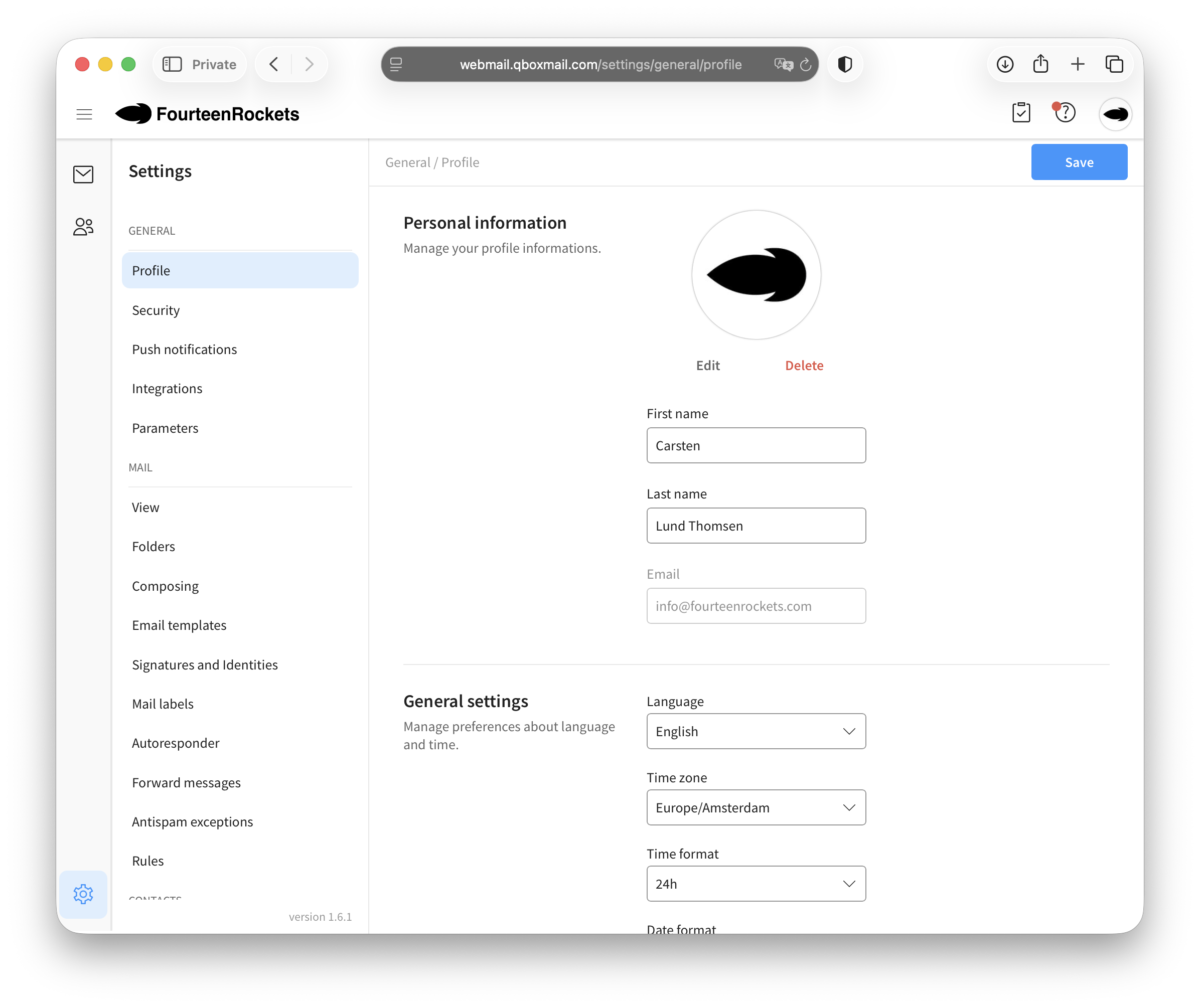
- Click the settings icon (⚙) in the bottom-left corner of the Webmail interface.
- In the sidebar, find the Mail section.
- Click Autoresponder.
Step 2
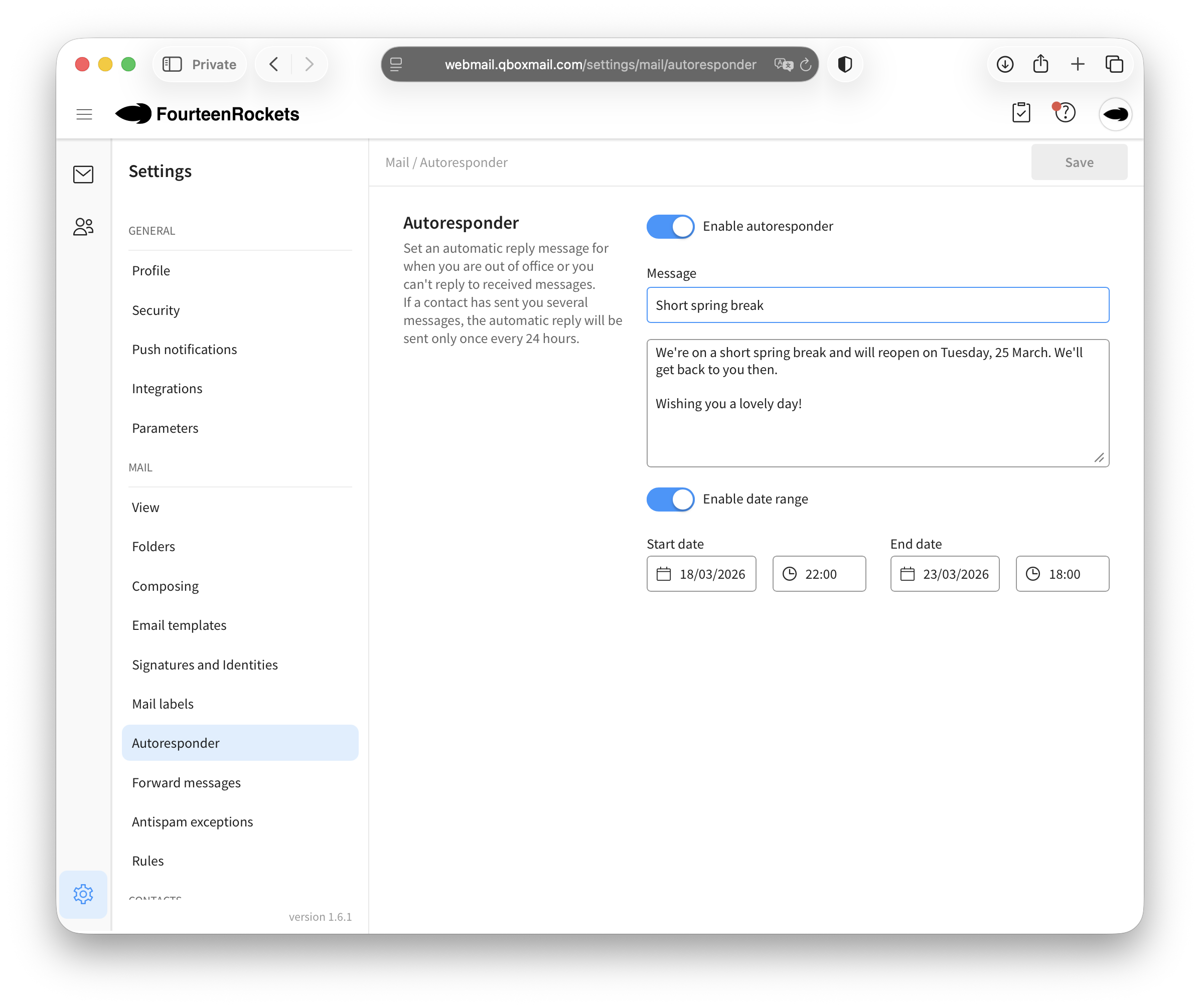
- Toggle Enable autoresponder on.
- Enter a subject for your auto-reply – for example, Out of office: back on [date].
- Write your message in the text field. Keep it brief: state when you’re away, when you’ll be back, and who to contact for urgent matters.
- Toggle Enable date range on.
- Set a start date and time and an end date and time.
- Click Save in the top-right corner.
Note: The auto-reply is sent to each sender only once within 24 hours, so no one will receive it repeatedly.
Good to know
- Test it first. Ask a colleague to send you a test email so you can check the reply arrives and looks as expected.
- Turning it off early. Go back to Settings → Autoresponder, toggle Enable autoresponder off, and click Save.
- Urgent contacts. If a colleague is covering for you, include their name and email address in your message.
Still need help?
If you’re having trouble setting up your auto-reply, please get in touch with us. We’re here to help.